Showing posts with label JQuery. Show all posts

Thursday, September 26, 2013

Web API Attribute Routing

ASP.Net Web API Attribute Routing is a new feature released with Web API 2. In this post I'll use the project which I developed in my previous post.
In the project uninstall nuget packages for ASP.Net web API. Now re-install RC release of Web API version 5.
In previous post I had to comment some methods in CarApiController and ModelApiConotroller.
Reason for that is both traditional and verb-based routing cannot be used in the same ApiController. But that issue is fixed with Web API 2.
First, in WebApiConfig class, map Http Attribute Routes like below.
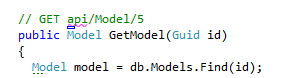
Change code in CarApiController and ModelApiConotroller like below. As you can see, in HttpGetAttribute I have passed routing path for the action.
Now change code appropriately in Client project. If you browse by 'http://localhost:52414/api/ModelApi/43213BE0-F9CF-4266-9B04-6B4645BEF41E', this will call GetModel action.
But if you browse by 'http://localhost:52414/api/ModelApi/43213BE0-F9CF-4266-9B04-6B4645BEF41E/Make', this will call to GetModels action.
Using attribute routing we can have versioning of Web API and much more things.

You can find the source code of this in GitHub.

Consume Web API using JQuery

In this post I'll show how to consume an ASP.Net Web API using JQuery.

First create two ASP.Net MVC projects. Named them as Client and WebAPI. The WebAPI project contains all the API code hat we are going to access via Client. At the end WebAPI content will be published in to IIS and we will access API via Client.
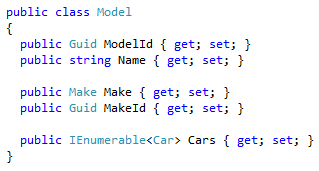
Add Make, Model and Car classes.
Then add MakeApiController, ModelApiController and CarApiController like below.
At the end, Client page will be look like below.
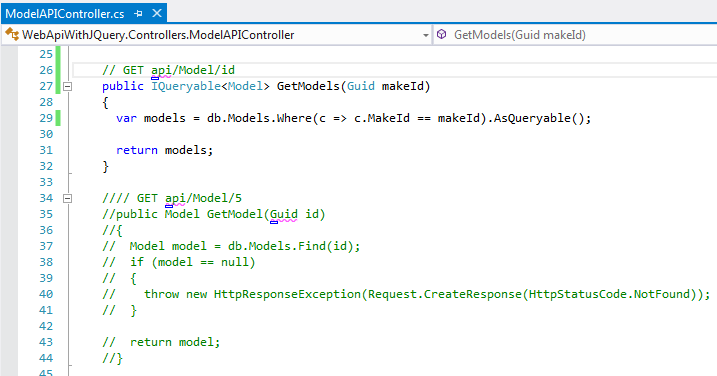
Depending on selections combo boxes will be filled out. So in ModelApiConotroller, we need a API method like 'GetModelsByMakeId'. Also in CarApiController, we need a API method like 'GetCarByModelId'. But the issue is both traditional and verb-based routing cannot be used in the same ApiController. Already there is a Get Verb method in both controllers. So change the code in both controllers like below. Commented block is existing Get Verb method.
Now open IIS and create web application like below. I have used port 86. Publish your WebAPI project to that web application path.
Now we have to develop our Client project. First of all, download bootstrap and paste the files in to relevant locations.
Create a controller called CarController and open Index.chtml of that. Edit the code like below.
Create Demo.js file in Scripts folder and add relevant code. In the below image you can see how to call Web API resource using JQuery.
Now run the Client and browser for Car page.

You can find the source code of this in GitHub.

Saturday, August 17, 2013

Faster Web Development Using Bootstrap

Bootstrap is "Sleek, intuitive, and powerful mobile-first front-end framework for faster and easier web development". This is developed by a couple of engineers at Twitter. Since its first public release in 2011, it has found huge popularity among web developers for its ease of use and feature set, and in 2012 was the most popular project on GitHub.

In this post I'll explain how to use Bootstrap with ASP.net MVC project.

Create ASP.net MVC Internet web application. Using nuget search for Bootstrap and install it.
This will install style-sheet files and bootstrap java-script file.
Add a ASP.net MVC Layout page called _MyLayoutPage in to shared folder. Add reference for the .css file for bootstrap inside the head tag. Add JQuery and bootstrap java-script files right before the closing body tag. Code should be like below.
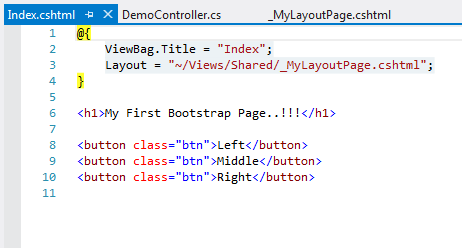
Add a empty MVC controller called DemoController. Then add the index view and it's layout page must be _MyLayoutPage.chtml. In Index.chtml add html code like below.
Run the project a browse for ~Demo/Index. You'll see a page like below.
There are lot more components described in bootstrap's components page. To understand complex controls add a new Demo Action method and related view. In that view add following code.
The output page is looks like below.
But this is not a responsive layout yet. A responsive layout site is basically a website that is coded for any and every type of screen size. Most of the responsive layouts features are all handled with CSS, some a little more with the help of jQuery and/or javascript. There are three "main" screens it is for, a regular desktop computer screen, a tablet screen (iPad, Kindle), and a mobile device screen (iPhone, Android, etc.). We can have this feature with Bootstrap very easily.
To make Demo.chtml, a responsive page, add bootstrap-responsive.min.css file after the bootstrap.min.css file. Then add viewport meta tag anywhere inside head tag. This allows mobile browsers to fit the entire web page inside the virtual display. Users can then zoom in on interesting content. However, if you set the viewport width to the actual device width, no zooming is required, because the content fits in the mobile browser.
Now the changed _MyLayoutPage.chtml look like below.
You can have responsive layout experience by increasing and decreasing the browser width and height.

You can find the source code of this in GitHub.

Friday, April 5, 2013

JavaScript Unit Testing

Modern web applications use various java-script code to provide better interactivity and responsiveness. For example, java-script libraries like JQuery, KnockoutJS, DurandalJS, RequireJS and etc. So now we need to have proper environment for test java-script code. This will be a different challenge than server side testing.

In this demo I'll show how to test small java-script code which will calculate two input values. For testing, I'll use QUnit, which was written by JQuery team to test JQuery.

Create ASP.net MVC internet application. In HomeController add Demo Action and related view.
As you can see I have used HTML5 data bindings with KnockoutJS. Add calculate.js file with following scripts. If you are not familiar with KnockoutJS, you can read my previous posts.
When a user enter Number1, Number2 and press Add, then calculation will happen and total will be shown. Run this application and try it.
Now we have to test java-script code we wrote in calculate.js.

Download QUnit java-script file and QUnit style-sheet file from QUnit site. Add those files to Scripts and Content folders appropriately.
It's better to create tests separately. So we can add a new ASP.net MVC Area called Test.
Add DemoController and Index action and related view. In Index view add refrences for QUnit style sheet and QUnit java-script files. Also we need to add JQuery, Knockout and calcualte.js files, because calculate.js file requires those java-script libraries. Also add two div elements, which requires for QUnit. Give id for those div elements like below.
CalculateTest.js file is the java-script file which we wrote tests. Content of CalculateTest.js file is like below.
The test function and equal functions are specific to QUnit. In this file there's a test scenario called Calculate Test. Within that, I have created CalculateVM and set num1 and num2 appropriately, then call calculate function. After that, test whether total is correct or not. Run the application and go to /Test/Demo/. Result will be like below.
Now change expected value as 31.
Then result will have errors.
You can find the source of this demo in GitHub.

Monday, April 1, 2013

Java-script Notifications with Toastr JS

ToastrJS is a simple java script library for notifications in browser which is small and easy to use.

In this post I'll configure ToastrJS for a small application. Create ASP.net MVC internet project. Add ToastrJS using Nuget.
In HomeController add Demo action and related view. Then add another JsonResult action to call using JQuery ajax.
In Demo.chtml add Toastr style sheet and related java scripts. In script level configure for various ToastrJS notifications like below.
ToastrJS has various notifications like
  • info
  • warning
  • success
  • error
When we run the project you'll be able to see those notifications like below.
These notifications will display in bottom-right corner. We can configure this by using toastr.options.positionClass. There we can give top-right, bottom-full-width like wise.
You can find the source of this demo in GitHub.

Monday, March 25, 2013

SPA with DurandalJS

DurandalJS is a client side java-script library which designed to make Single Page Applications(SPA). Durandal is built on jQuery, Knockout and RequireJS libs.

DurandalJS is using Asynchronous Module Definition (AMD) pattern by referring RequireJS. In my previous post I showed how to use RequireJS with ASP.net MVC.
In this post I'll explain how to create simple Single Page Application using DurandalJS.

First create ASP.net MVC internet application and install following NuGet packages.
  • Durandal
  • Durandal.Router
  • Durandal.Transitions
This will add some folders and required java-script files to the project. 
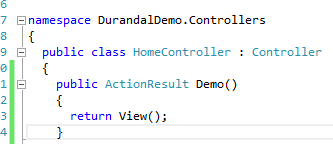
Now we need to create a view, for host the Single Page Application. So, add an Action for HomeController and related view page like below.
Add script references to view. Using data-main attribute, RequireJS will identify the location of Start up scripts. We must add a div container with an id of "applicationHost". That's the place Single Page Application going to be host.
Add views, viewmodels and main.js file in to App folder. 
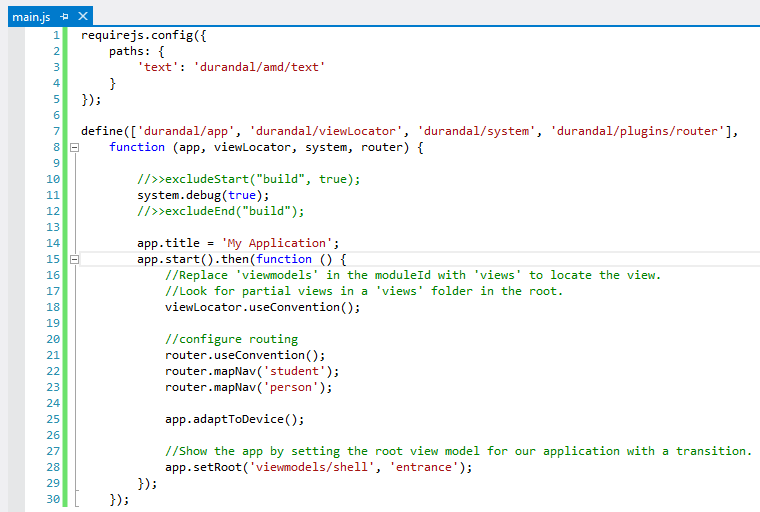
main.js file contains start-up scripts. So we can configure Durandal in there. Change main.js file like below.
We can enable debugging by using system.debug(true); This debug function is cross browser support and it only log details, when debug is enabled.
DurandalJS will start application by using app.start(). We can configure for application specific conventions like routing and also configure for mobile devices in this script. Finally set application root. You can see in our Single Page Application there are two views. Student and Person. So I have map those views using DurandalJS router.
Next we need to add shell.js, which is the root module that we configured in the main.js file. In shell module we activate student view. That means in start up of application student view will be default.
In DurandalJS for each view-model there must be relevant view file. So add shell.html. In root page, we have two links for student and person views. Next we need to bind each active view using KnockoutJS.
Now all the configurations parts are done. So add relevant view-models and views for Student and Person. After that, folder structure must be like below.
Content of each view and view-models should be like below. 
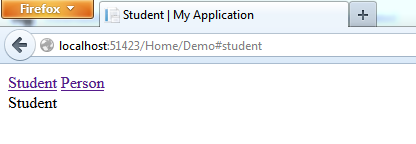
Run the application and browse /Home/Demo.
You can find the source of this demo in GitHub.