Showing posts with label C#. Show all posts

Sunday, July 26, 2015

What is JWT?

API based software development has hugely increased. Now we need to think how are we going to secure API based application. In my previous post I explained how to use token based authentication. In this post we will look how to use JSON web tokens and how to secure api based applications using that.
JSON web tokens(JWT - pronounced as jot), work across difference programming languages. A JWT can be separated into three parts by a dot (.).
  • Header
  • Payload
  • Signature

Header

Header contains, type and hashing algorithm.

Payload

Payload contains JWT claims. There are three claim types.

  • Registered claims
Claims that are not mandatory but whose names are registered for us. For example: The issuer of the token (iss), Subject of the token (sub), expiration of token (exp) and etc.
  • Public claims
These are claims defined by API owner. For example: Username and other important data.
  • Private claims
These are claims defined between producer and consumer of API.

Signature

The signature is made up of hash of following components.

  • Header
  • Payload
  • Secret (This value is held in server)

After that, in each request server needs to decode JWT and check payload claims.
According to claims, server can grant or deny functionalities.

Token Based Authentication

Reasons for token based authentication :
  • Stateless and salable servers
  • Mobile applications
  • Pass authentication to other applications (OAuth)
  • Extra Security
HTTP is a stateless protocol. Though we authenticate a user, application wont know about that user in next request. Traditional way is to store session data in the server. Usually in memory or stored in a disk. But this approach introduced lots of issues.
  • Server need to store session data (Overhead)
  • Session is store in the server. So issues come up when scaling the server
  • Mobile applications need to have CORS.
Steps of Token Based Authentication
  • User Requests Access with Username / Password
  • Application validates credentials
  • Application provides a signed token to the client
  • Client stores that token and sends it along with every request
  • Server verifies token and responds with data

Thursday, November 20, 2014

Create C# classes using a JSON response

Assume you have a JSON access point and the response is like below(This is accessed via Fiddler).
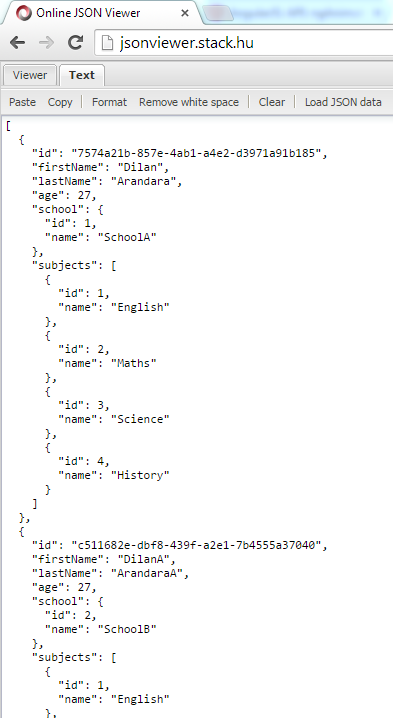
Copy that JSON response and format it using a JSON viewer. In this demo I have used http://jsonviewer.stack.hu/.
Copy the code snippet as highlighted.
Create an empty class file in Visual Studio.
The you can paste the JSON code as classes like below.
The created classes will be look like below.

Change the JSON serialization which follows the Camel Case notation

In software coding, we must follow the naming conventions. In C#, first letter of the property name should be capitalize. But in JavaScript first letter should not be capitalize.

If we create a default ASP.net Web API project, above naming conventions will be ignored.

In the following demo I will show an example how we will get a JSON response in default Web API project and how we can configure the project to have correct naming conventions.

First create a ASP.net Web API project.
Add School and Student classes to the model folder. Add an empty Web API controller called StudentsController to the controllers folder.
Content of the Student class should be like below
Content of the School class should be like below.
In the StudentsController add an Web API action method like below.
Then run the project and check it in the Fiddle.
You will see the JSON naming conventions are not there. All field names are according to the C# classes.
For the correct naming conventions we must add a new configuration to the WebAPiConfig class. You have to use CamelCasePropertyNamesContractResolver class.
Again run the project and check the response in Fiddler. Now the JSON response has correct naming conventions.

Sunday, March 9, 2014

ASP.Net Web API with BSON

BSON is a binary serialization format. "BSON" stands for "Binary JSON", but BSON and JSON are serialized very differently. BSON is "JSON-like", because objects are represented as name-value pairs, similar to JSON. Unlike JSON, numeric data types are stored as bytes, not strings. BSON is mainly used as a data storage and network transfer format in the MongoDB database.

According to ASP.Net Web API 2.1 release;

  • The BSON was designed to be lightweight, easy to scan, and fast to encode/decode.
  • BSON is comparable in size to JSON. Depending on the data, a BSON payload may be smaller or larger than a JSON payload. For serializing binary data, such as an image file, BSON is smaller than JSON, because the binary data does is not base64-encoded.
  • BSON documents are easy to scan because elements are prefixed with a length field, so a parser can skip elements without decoding them.
  • Encoding and decoding are efficient, because numeric data types are stored as numbers, not strings.

Native clients, such as .NET client apps, can benefit from using BSON in place of text-based formats such as JSON or XML. For browser clients, you will probably want to stick with JSON, because JavaScript can directly convert the JSON payload.
Advantage of WEB API is, we can have content negotiation. So the client can select in which format does he need the data.

Create ASP.net Web API project. Update ASP.net Web API nuget packages.
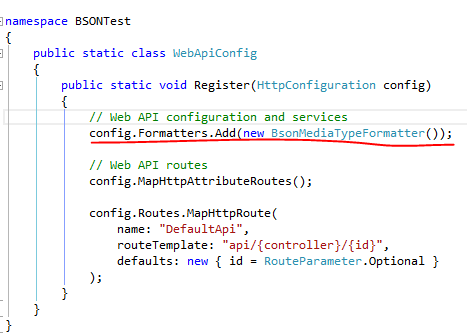
In WebApiConfig file add BsonMediaTypeFormatter. Now if the client requests "application/bson", Web API will use BSON formatting as the response.
Add a simple class called Student.
Add a api controller called StudentController and change the Index method like below.
Using fiddle compose a json message like below.
And the response will be like;
Now set the accept header as application/bson.
Now the response will be like;
In general speaking, if your service returns more binary, numeric and non textual data, then BSON is the best thing to use.

Sunday, December 2, 2012

Data Driven Coded UI Tests

Coded UI is automated tests which driven through the application UI. The coded UI test performs actions on the user interface controls for an application and verifies that specified controls display the correct values.

Assume you have a WPF application like below. You can enter the name and then press Go button. Then it'll show a label which has Hello Dilan like below.
Assume you have below UI steps like LaunchApplication, EnterTheName, AssertTheLabelValue and CloseApplication.
When you create a Action Record method like EnterTheName then Visual Studio will generate a class called EnterTheNameParams. Also for the assertions like AssertLabelValue Visual Studio will generate a class like AssertLabelValueExpectedValues. So you can create a test method like below.
After create a Coded UI test, you need to run that for different sets of data to test different conditions. To do that we can use a data source like CSV, Excel, XML, SQL Express and etc.
If you have VS 2010 open Test View window. In the properties of test, you can add a data connection string. So the rest of the code will generate by Visual Studio.
But if you have VS 2012, the Test Window has deprecated. So you have to manually add the data source and add the relevant attributes. For example, I have used Data.csv file like below.
Add Data.csv file in to the project.
Then insert the DataSource attribute directly in the code, in the line immediately above your test method. Also change the code to retrieve the values from data-source.
You don't have to add any loop to run the test for each condition. Coded UI will automatically handle that. So this test will be run for thee times, because there are three rows in the data source.

Monday, November 26, 2012

Bundling and Minification with VS 2012

In my previous post I have explained how to do bundling and minification in general way. But in this post I'm going to tell how to do bundling and minification using VS 2012. And also this will continue the demo from the previous post.
Add Web Essentials 2012 for the VS 2012 using Extensions and Updates.
In the MVC project select the three script files and right click. Select, Create JavaScript Bundle File as below. And give an appropriate name for the bundle.
This will create a bundle file. If change any of the dilanA.js, dilanB.js or dilanC.js then the bundle file will get updated.
In the default view of the DemoController refer the JavaScript file as below. That's it in VS 2012 for bundling and minification.

Advantage of the map File

The js.map file contains the source maps for each JavaScript file. But when we debug the code it's difficult to debug the minified the code. But currently some browsers are supporting for the map file debugging. In Google Chrome go to Settings and check the Enable Source Maps. Though you bundle and minified the JavaScript files, you can easily debug the JavaScript Source files. Not the minified JavaScript file.


Sunday, November 25, 2012

Bundling and Minification

Bundling and minification was introduced with ASP.net 4.5, which makes to improve the performance of the application. So this feature is useful in the production time than in the development time.
  • Bundling reduces the number of individual HTTP requests to the server. For example by combining multiple CSS files or JavaScript files into one single CSS file or JavaScript file.
  • Minification reduces the file download size of CSS or JavaScript by removing white spaces, comments, variable lengths and other unnecessary characters.
Create an ASP.net MVC project. In this post we'll consider about the JavaScript bundling. For that copy the jquery-1.7.1.js file in the Scripts folder and paste that file three times and rename those. For example dilanA.js,  dilanB.js and dilanC.js.
Add a new controller called DemoController and add the default action and the view. In the view add references for the above three JavaScript files.
Run the project and go to the Index page of the DefaultController. Using Google Chrome observe the network usage.
There are three requests for each JavaScript file and lot of time has consumed for each request. Now we have to bundle and minify the above three JavaScript files.
Bundling and minification is enabled or disabled by setting the value of debug attribute in the Web.config file.
To enable that, set the debug value to false.
You can override Web.config setting with the EnableOptimizations property on the BundleTable class. Add following code in the BundleConfig.cs file in the App-Start folder.
Add the following code into the RegisterBundles method in the BundleConfig.cs file.
Also in the default view of the DemoController, add the following code.
Now browse again the default view of the DemoController and check the network usage. Only one single request for all the three JavaScript files. And lesser time than previous request. Also the size of the requested file has minified, if we compare that to the total size of the all the three files.
Also we can use async attribute in HTML 5 for these bundling and minification. For that make the DOCTYPE tag in to HTML 5 standard. After that add the bundling and minification code like below.