Showing posts with label VS 2013. Show all posts

Sunday, July 26, 2015

NodeJS API Authentication Using JWT

In my previous post I explained what is JWT and how to handle claim based authentication using that. In this post I will explain how to write simple NodeJS application using jwt-simple npm package.
First create blank nodejs application using visual studio like below.
Install following npm packages.
Create a folder called models and create User.js file like below.
In server.js file configure Access Token Headers like below.
Then write passport login function like below.
Next we need to write passport register function like below.
Next using jwt-simple npm packge, write following createSendToken function.
Next write register and login route functions like below.
We will create a new route called students and implement that like below.
Then set mongodb connection and listen for port 3000 in nodejs server like below.
Using Advanced Rest Client Chrome extension, we can test the application. First we will access students. Then we will get a unauthorized response.
Then register a user in the system like below. It will send a JWT token. Copy that to clip board. Because, to access students endpoint you need to send that token with headers.
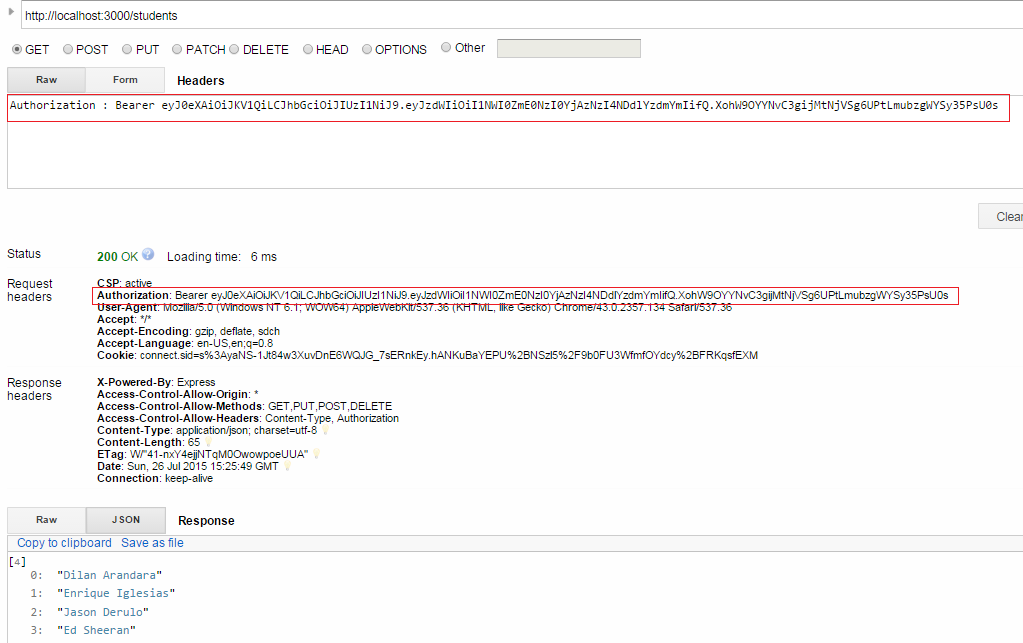
Next access students endpoint like below. Send the JWT token in headers like below.

Saturday, June 13, 2015

Using Grunt with NodeJS

You may have work with Ant or Rake to configure automation of repetitive tasks. For NodeJS, Grunt has become one of the easiest way to automate your repetitive tasks.
I have explained how to use Grunt with ASP.Net MVC project in my earlier post. In this post I will explain how to use Grunt with your NodeJS project.
First you need to install grunt-cli package globally.
And then install grunt as a npm package to your project.
As developers we may need to run our project in development mode or test mode. We can do that easily using grunt-env module. Install grunt-env as npm package.
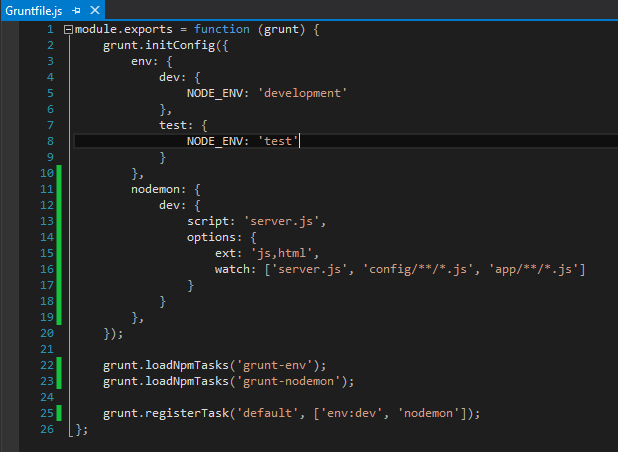
In the GruntFile.js you can configure environment specific things easily.
When continuously developing your application, you will need to stop and start your application server frequently. To help with this task, there is a tool called Nodemon, which you can integrate to your NodeJS application using Grunt. First install nodemon as a npm package.
Then you need to configure nodemon grunt task.
In the options property, we configure Nodemon's operation and specify to watch both the HTML and JavaScript files that are placed in your config and app folders.
Runt grunt command in command prompt against to your project location.
Now do some changes in server.js file or any other *.js or *.html file which are in given locations. You do not have to restart your node server to check your changes. nodemon will automatically handle that for you. You will see a message for that in the command prompt.
Download Source Code from GitHub.

Tuesday, May 19, 2015

Node JS with Express

In this post I will explain how to create a node js web application using express js.
First create a Visual Studio Node JS project using following way.
The project structure would look like this.
You have to install express as a npm package. There are several ways to do that.

  • Using npm package manager
  • Edit package.json file and install npm packages via command line
  • Using command line directly install and save the version to package.json

My preference is last one.
To organize our project in much readable way, we will use MVC pattern. Most important thing we should remember is, we have to use MVC pattern in both in server and client side code. Therefore we must have proper naming conventions for files. Add MVC folders according to following structure.
Add student.server.controller.js file into controllers folder. The code should be like below. In here I used common js module pattern.
Next we need to create routes for the student.server.controller. Add routes folder and add student.server.route.js file into that. First you have to load controller dependency. Routing module function accept single argument called app, where we need to pass instance of Express application. Withing the function we should configure router path with related route method to call.
Now we can configure express middleware in a proper way. To do that, add config folder and add express.js file into that folder.
Content of the express.js file should like below. In the configuration method, it loads the route and pass express instance to that.
Final step is to configure server.js file.
Run the app using node server command.
Browse for http://localhost:3000/ . You will see following result.
In a next post I will show how to render the student list in a proper way.

Thursday, November 20, 2014

Create C# classes using a JSON response

Assume you have a JSON access point and the response is like below(This is accessed via Fiddler).
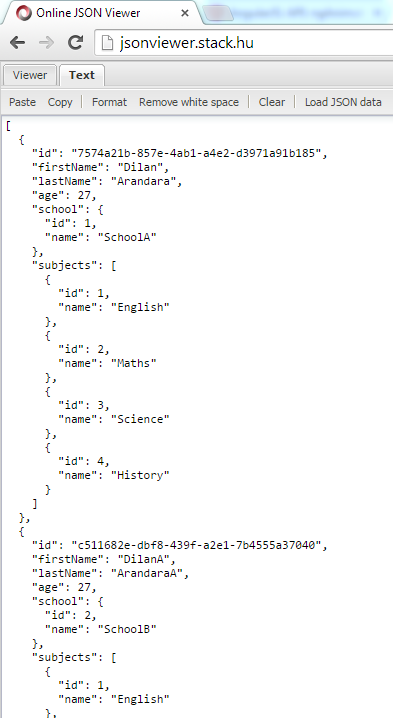
Copy that JSON response and format it using a JSON viewer. In this demo I have used http://jsonviewer.stack.hu/.
Copy the code snippet as highlighted.
Create an empty class file in Visual Studio.
The you can paste the JSON code as classes like below.
The created classes will be look like below.

Change the JSON serialization which follows the Camel Case notation

In software coding, we must follow the naming conventions. In C#, first letter of the property name should be capitalize. But in JavaScript first letter should not be capitalize.

If we create a default ASP.net Web API project, above naming conventions will be ignored.

In the following demo I will show an example how we will get a JSON response in default Web API project and how we can configure the project to have correct naming conventions.

First create a ASP.net Web API project.
Add School and Student classes to the model folder. Add an empty Web API controller called StudentsController to the controllers folder.
Content of the Student class should be like below
Content of the School class should be like below.
In the StudentsController add an Web API action method like below.
Then run the project and check it in the Fiddle.
You will see the JSON naming conventions are not there. All field names are according to the C# classes.
For the correct naming conventions we must add a new configuration to the WebAPiConfig class. You have to use CamelCasePropertyNamesContractResolver class.
Again run the project and check the response in Fiddler. Now the JSON response has correct naming conventions.

Thursday, November 13, 2014

Deploy and Debug Azure WebJobs

In my last post I have explained about the Azure WebJobs. In this post I'll explain how to deploy and debug WebJobs. So this demo will continue with the development work which we have done in the last post.
First right-click the WebClient web application project and select publish.
In the opened dialog box you have to select Microsoft Azure Web Site as the publish target.
Sign into a an Azure subscription.
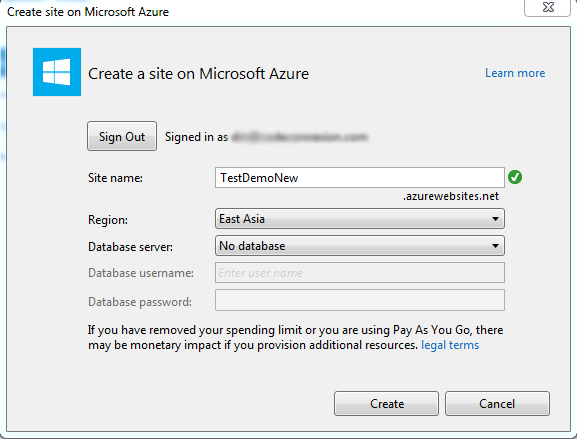
I haven't create a web site for this demo in Azure. So create a new web site.
Publish the web site.
When you select the configurations, select configuration as debug. Because we will be going to debug this application using VS 2013. So that select will enable the remote debugging.
This web site will be published to the Azure and you'll be able to see that in Azure portal. WebJobs will be run from the App_Data folder of an existing WebSite. So the contents of the WebJobs will be deployed to the App_Data folder.
Log in to Windows Azure using VS 2013. Because for this demo we try to utilize most of the tools provided by Visual Studio. After that you'll be able to see the Web Site which we created recently and the WebJobs which we have deployed with that WebSite.
Azure WebJobs are using Azure Storage Queues for passing messages through queues and storing and retrieving files from Azure Blob containers, And also statistics about how and when WebJobs were executed details are stored in Azure Storage. For these things, Azure WebSite must have storage account connection strings. So using Visual Studio Server Explorer, create a new Azure Storage.
In the properties of newly created storage, you can find the connection string.
Right-click and open the Azure Web Site settings panel.
In there create new connection strings named AzureWebJobsStorage and AzureWebJobsDashboard. Paste the value of the Azure Storage connection string for the above values.
Now the WebSite and WebJobs are deployed and configured correctly. Then select attach Debugger and Run menu items appropriately for the WebJobs.