In our previous blog post we create a basic react application. In this post, we will continue with that app. First we will integrate Font Awesome with our application.
Next we will add the actions for students.
Add the StudentForm file like below.
Modify the StudentList file by adding mapStateToProps and mapDispatchToProps.
Finally modify the student reducer file like below.
In your app, when you select a student, it will automatically update the student information section.
You can download the source code for this application from GitHub.
Showing posts with label Bootstrap. Show all posts
Monday, May 6, 2019
Create a React app by integrating Redux
First generate a ReactJS application using create react app utility.
Next we are going to integrate Bootstrap with our project. Add Bootstrap style-sheet file and JavaScript files like below.
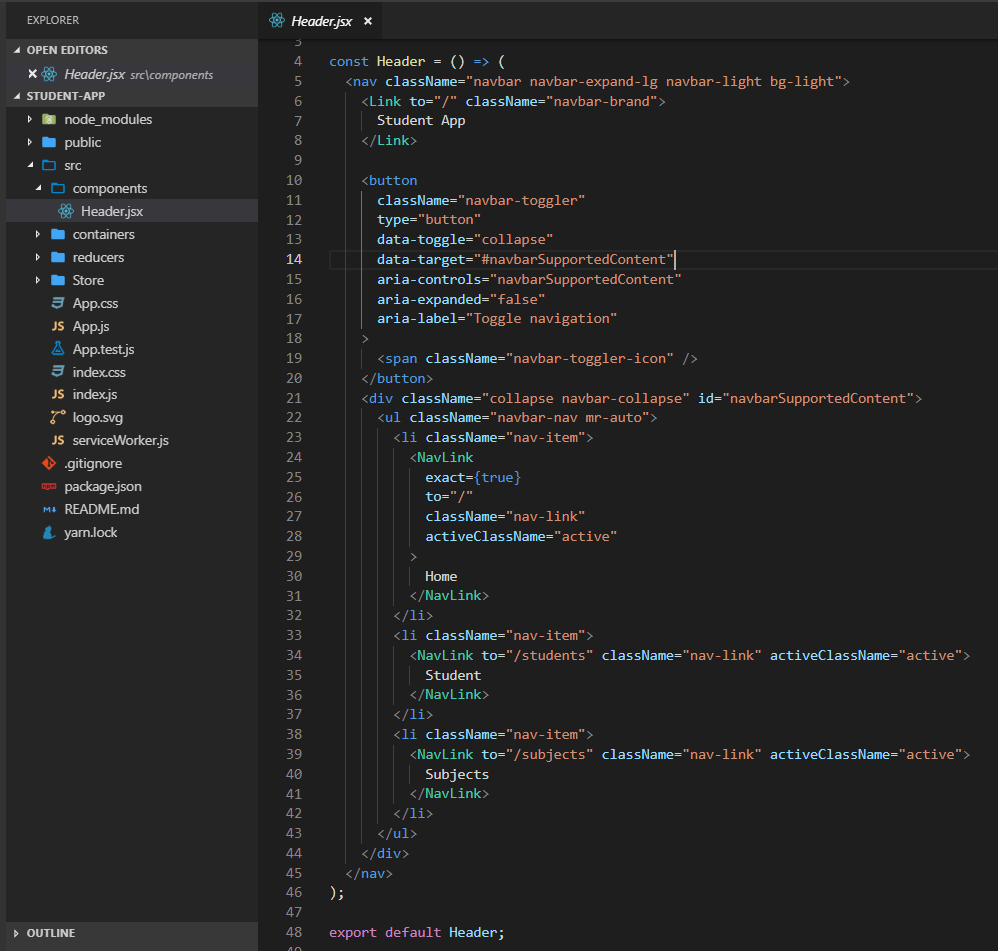
Next we should add a header for our application. We are going to add the header as a component.
In ReactJS, there are two main components. First one is smart component (containers) and the second one is dumb component (presentation component). Containers are very similar to components, except it aware about the state of the application. If you component is only use to display data, then make it a component.
As the Header will not aware about the application state, we will create the Header as a dumb component.
Then we should create the store. In order to create the store, first we must create reducers like below.
You can download the source code for this application from GitHub.
Thursday, September 26, 2013
Web API Attribute Routing
ASP.Net Web API Attribute Routing is a new feature released with Web API 2. In this post I'll use the project which I developed in my previous post.
In the project uninstall nuget packages for ASP.Net web API. Now re-install RC release of Web API version 5.
In previous post I had to comment some methods in CarApiController and ModelApiConotroller.
Reason for that is both traditional and verb-based routing cannot be used in the same ApiController. But that issue is fixed with Web API 2.
First, in WebApiConfig class, map Http Attribute Routes like below.
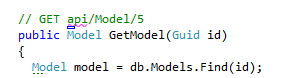
Change code in CarApiController and ModelApiConotroller like below. As you can see, in HttpGetAttribute I have passed routing path for the action.
Now change code appropriately in Client project. If you browse by 'http://localhost:52414/api/ModelApi/43213BE0-F9CF-4266-9B04-6B4645BEF41E', this will call GetModel action.
But if you browse by 'http://localhost:52414/api/ModelApi/43213BE0-F9CF-4266-9B04-6B4645BEF41E/Make', this will call to GetModels action.
Using attribute routing we can have versioning of Web API and much more things.
You can find the source code of this in GitHub.
In the project uninstall nuget packages for ASP.Net web API. Now re-install RC release of Web API version 5.
First, in WebApiConfig class, map Http Attribute Routes like below.
You can find the source code of this in GitHub.
Consume Web API using JQuery
In this post I'll show how to consume an ASP.Net Web API using JQuery.
First create two ASP.Net MVC projects. Named them as Client and WebAPI. The WebAPI project contains all the API code hat we are going to access via Client. At the end WebAPI content will be published in to IIS and we will access API via Client.
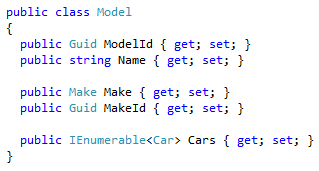
Add Make, Model and Car classes.
Then add MakeApiController, ModelApiController and CarApiController like below.
At the end, Client page will be look like below.
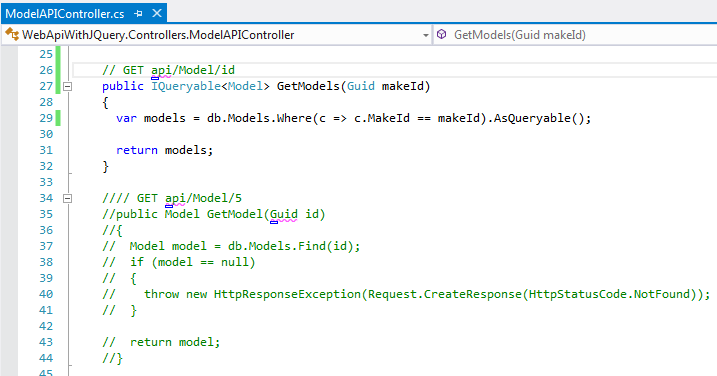
Depending on selections combo boxes will be filled out. So in ModelApiConotroller, we need a API method like 'GetModelsByMakeId'. Also in CarApiController, we need a API method like 'GetCarByModelId'. But the issue is both traditional and verb-based routing cannot be used in the same ApiController. Already there is a Get Verb method in both controllers. So change the code in both controllers like below. Commented block is existing Get Verb method.
Now open IIS and create web application like below. I have used port 86. Publish your WebAPI project to that web application path.
Now we have to develop our Client project. First of all, download bootstrap and paste the files in to relevant locations.
Create a controller called CarController and open Index.chtml of that. Edit the code like below.
Create Demo.js file in Scripts folder and add relevant code. In the below image you can see how to call Web API resource using JQuery.
Now run the Client and browser for Car page.
You can find the source code of this in GitHub.
First create two ASP.Net MVC projects. Named them as Client and WebAPI. The WebAPI project contains all the API code hat we are going to access via Client. At the end WebAPI content will be published in to IIS and we will access API via Client.
You can find the source code of this in GitHub.
Saturday, August 17, 2013
Faster Web Development Using Bootstrap
Bootstrap is "Sleek, intuitive, and powerful mobile-first front-end framework for faster and easier web development". This is developed by a couple of engineers at Twitter. Since its first public release in 2011, it has found huge popularity among web developers for its ease of use and feature set, and in 2012 was the most popular project on GitHub.
In this post I'll explain how to use Bootstrap with ASP.net MVC project.
Create ASP.net MVC Internet web application. Using nuget search for Bootstrap and install it.
This will install style-sheet files and bootstrap java-script file.
Add a ASP.net MVC Layout page called _MyLayoutPage in to shared folder. Add reference for the .css file for bootstrap inside the head tag. Add JQuery and bootstrap java-script files right before the closing body tag. Code should be like below.
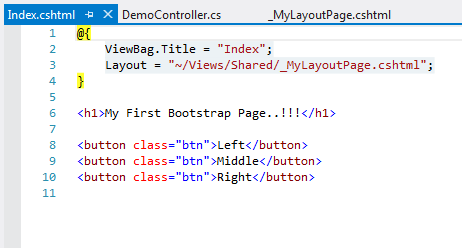
Add a empty MVC controller called DemoController. Then add the index view and it's layout page must be _MyLayoutPage.chtml. In Index.chtml add html code like below.
Run the project a browse for ~Demo/Index. You'll see a page like below.
There are lot more components described in bootstrap's components page. To understand complex controls add a new Demo Action method and related view. In that view add following code.
The output page is looks like below.
But this is not a responsive layout yet. A responsive layout site is basically a website that is coded for any and every type of screen size. Most of the responsive layouts features are all handled with CSS, some a little more with the help of jQuery and/or javascript. There are three "main" screens it is for, a regular desktop computer screen, a tablet screen (iPad, Kindle), and a mobile device screen (iPhone, Android, etc.). We can have this feature with Bootstrap very easily.
To make Demo.chtml, a responsive page, add bootstrap-responsive.min.css file after the bootstrap.min.css file. Then add viewport meta tag anywhere inside head tag. This allows mobile browsers to fit the entire web page inside the virtual display. Users can then zoom in on interesting content. However, if you set the viewport width to the actual device width, no zooming is required, because the content fits in the mobile browser.
Now the changed _MyLayoutPage.chtml look like below.
You can have responsive layout experience by increasing and decreasing the browser width and height.
You can find the source code of this in GitHub.
In this post I'll explain how to use Bootstrap with ASP.net MVC project.
Create ASP.net MVC Internet web application. Using nuget search for Bootstrap and install it.
To make Demo.chtml, a responsive page, add bootstrap-responsive.min.css file after the bootstrap.min.css file. Then add viewport meta tag anywhere inside head tag. This allows mobile browsers to fit the entire web page inside the virtual display. Users can then zoom in on interesting content. However, if you set the viewport width to the actual device width, no zooming is required, because the content fits in the mobile browser.
Now the changed _MyLayoutPage.chtml look like below.
You can find the source code of this in GitHub.
Subscribe to:
Posts (Atom)