Debugging a NodeJS application is a complicated task. But you can use Nodeinspector for make your life easier.
We will install Nodeinspector as a grunt task.
Then install grunt-concurrent. This module is used to run multiple Grunt tasks concurrently.
Now configure grunt tasks accordingly.
Then run grunt debug command. This will run your application in debug mode and start node-inspector server. Command line output should be like below.
You can open you web application and debug URL. Node-inspector will only work on browsers that use the Blink engine, such as Google Chrome or Opera. Therefore it's better to go with above browsers.
Showing posts with label Grunt. Show all posts
Sunday, June 14, 2015
Saturday, June 13, 2015
Test Automation NodeJS Application using Grunt
In my previous post I showed how to use Grunt in your NodeJS project. And also I have showed how to run NodeJS tests with mocha and how to run Jasmine tests with Karma. In this post I will show how to automate those tasks using Grunt.
I assume you have installed and configured Grunt, according to my previous post. Then install grunt-karma and grunt-mocha-test as npm packages.
Then configure grunt tasks for above modules.
To run test cases, only thing you have to do is run grunt test command in your command prompt against your project location.
I assume you have installed and configured Grunt, according to my previous post. Then install grunt-karma and grunt-mocha-test as npm packages.
Then configure grunt tasks for above modules.
To run test cases, only thing you have to do is run grunt test command in your command prompt against your project location.
Using Grunt with NodeJS
You may have work with Ant or Rake to configure automation of repetitive tasks. For NodeJS, Grunt has become one of the easiest way to automate your repetitive tasks.
I have explained how to use Grunt with ASP.Net MVC project in my earlier post. In this post I will explain how to use Grunt with your NodeJS project.
First you need to install grunt-cli package globally.
And then install grunt as a npm package to your project.
As developers we may need to run our project in development mode or test mode. We can do that easily using grunt-env module. Install grunt-env as npm package.
In the GruntFile.js you can configure environment specific things easily.
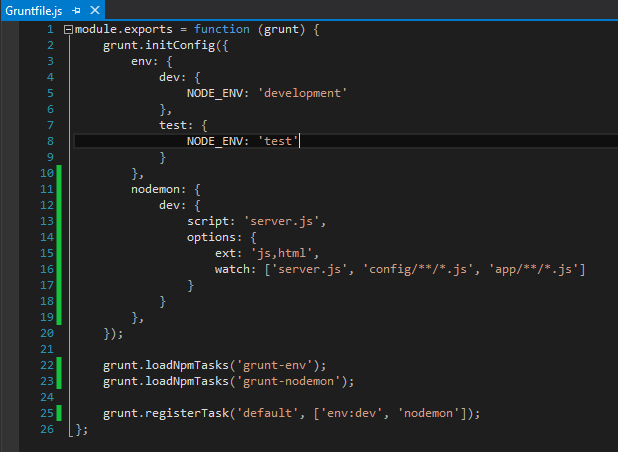
When continuously developing your application, you will need to stop and start your application server frequently. To help with this task, there is a tool called Nodemon, which you can integrate to your NodeJS application using Grunt. First install nodemon as a npm package.
Then you need to configure nodemon grunt task.
In the options property, we configure Nodemon's operation and specify to watch both the HTML and JavaScript files that are placed in your config and app folders.
Runt grunt command in command prompt against to your project location.
Now do some changes in server.js file or any other *.js or *.html file which are in given locations. You do not have to restart your node server to check your changes. nodemon will automatically handle that for you. You will see a message for that in the command prompt.
I have explained how to use Grunt with ASP.Net MVC project in my earlier post. In this post I will explain how to use Grunt with your NodeJS project.
First you need to install grunt-cli package globally.
And then install grunt as a npm package to your project.
As developers we may need to run our project in development mode or test mode. We can do that easily using grunt-env module. Install grunt-env as npm package.
In the GruntFile.js you can configure environment specific things easily.
When continuously developing your application, you will need to stop and start your application server frequently. To help with this task, there is a tool called Nodemon, which you can integrate to your NodeJS application using Grunt. First install nodemon as a npm package.
Then you need to configure nodemon grunt task.
In the options property, we configure Nodemon's operation and specify to watch both the HTML and JavaScript files that are placed in your config and app folders.
Runt grunt command in command prompt against to your project location.
Now do some changes in server.js file or any other *.js or *.html file which are in given locations. You do not have to restart your node server to check your changes. nodemon will automatically handle that for you. You will see a message for that in the command prompt.
Friday, March 27, 2015
Using Grunt in ASP.net 5 project
We will continue this with the code which I have done in my last post.
What is Grunt? Grunt is an open-source tool that you can use to build all of the frontend resources for your project.
In this demo, I will mainly use Grunt for JavaScript minification.
There are three types of Package Managers in Visual Studio 2015.
First we will define Grunt package in NPM. For that we need to add NPM file like below.
Change the content of package.json file like below. It will add, NPM packages into the project.
Add Grunt.js file and change content of that file for JavaScript minification process. This code will minify all javscript files in Scripts folder and create app.js file in wwwroot. Uglify combines JavaScript files according to the order they have defined in Grunt Configuration.
Add Scripts folder and add a javascript file into that folder. Open Task Runner in Visual Studio.
Run Uglify command. This will create app.js minified file in wwwroot folder.
It's easier if you bind the Uglify command to automatically run in After Build.
What is Grunt? Grunt is an open-source tool that you can use to build all of the frontend resources for your project.
In this demo, I will mainly use Grunt for JavaScript minification.
There are three types of Package Managers in Visual Studio 2015.
- Nuget
- NPM(Node Package Manager)
- Bower
First we will define Grunt package in NPM. For that we need to add NPM file like below.
Change the content of package.json file like below. It will add, NPM packages into the project.
Add Grunt.js file and change content of that file for JavaScript minification process. This code will minify all javscript files in Scripts folder and create app.js file in wwwroot. Uglify combines JavaScript files according to the order they have defined in Grunt Configuration.
Add Scripts folder and add a javascript file into that folder. Open Task Runner in Visual Studio.
Run Uglify command. This will create app.js minified file in wwwroot folder.
It's easier if you bind the Uglify command to automatically run in After Build.
Subscribe to:
Posts (Atom)