Showing posts with label Web API. Show all posts

Thursday, March 26, 2015

Using Web API in ASP.net 5

In my last post I created a Web Project using ASP.net 5. Now we will create some web api controllers.
First, add ASP.net MVC nuget package to the project.
Then change the Startup.cs class like below.
When you run the application, the browser must open following page, which means your IIS works correctly.
In ASP.net 5, there are two primary concepts.

  • Middleware
Middleware is in the HTTP pipeline. When HTTP request comes in it will go through all the middleware according to the order they have defined. After complete that request, response with flows back through the same route.
  • Services
Using dependency injection pattern, services are availabled to all middleware components. For example, DbContext, Logger service and etc.

Change the Startup class like below. Above mentioned middleware and Service codes are applied from Startup class. This code has configured to use DbContext using DI pattern.
Create folder named Controllers and add a Web API Controller class like below.
If you have data in your database, then you will be able to see an output like below.
Assume, there was an exception occurred. Change the web api controller code like below.
Change the Startup.cs file content.
When you run the project, you will see a beautiful error handling page which contains lots of details.

Thursday, November 20, 2014

Change the JSON serialization which follows the Camel Case notation

In software coding, we must follow the naming conventions. In C#, first letter of the property name should be capitalize. But in JavaScript first letter should not be capitalize.

If we create a default ASP.net Web API project, above naming conventions will be ignored.

In the following demo I will show an example how we will get a JSON response in default Web API project and how we can configure the project to have correct naming conventions.

First create a ASP.net Web API project.
Add School and Student classes to the model folder. Add an empty Web API controller called StudentsController to the controllers folder.
Content of the Student class should be like below
Content of the School class should be like below.
In the StudentsController add an Web API action method like below.
Then run the project and check it in the Fiddle.
You will see the JSON naming conventions are not there. All field names are according to the C# classes.
For the correct naming conventions we must add a new configuration to the WebAPiConfig class. You have to use CamelCasePropertyNamesContractResolver class.
Again run the project and check the response in Fiddler. Now the JSON response has correct naming conventions.

Sunday, March 9, 2014

ASP.Net Web API with BSON

BSON is a binary serialization format. "BSON" stands for "Binary JSON", but BSON and JSON are serialized very differently. BSON is "JSON-like", because objects are represented as name-value pairs, similar to JSON. Unlike JSON, numeric data types are stored as bytes, not strings. BSON is mainly used as a data storage and network transfer format in the MongoDB database.

According to ASP.Net Web API 2.1 release;

  • The BSON was designed to be lightweight, easy to scan, and fast to encode/decode.
  • BSON is comparable in size to JSON. Depending on the data, a BSON payload may be smaller or larger than a JSON payload. For serializing binary data, such as an image file, BSON is smaller than JSON, because the binary data does is not base64-encoded.
  • BSON documents are easy to scan because elements are prefixed with a length field, so a parser can skip elements without decoding them.
  • Encoding and decoding are efficient, because numeric data types are stored as numbers, not strings.

Native clients, such as .NET client apps, can benefit from using BSON in place of text-based formats such as JSON or XML. For browser clients, you will probably want to stick with JSON, because JavaScript can directly convert the JSON payload.
Advantage of WEB API is, we can have content negotiation. So the client can select in which format does he need the data.

Create ASP.net Web API project. Update ASP.net Web API nuget packages.
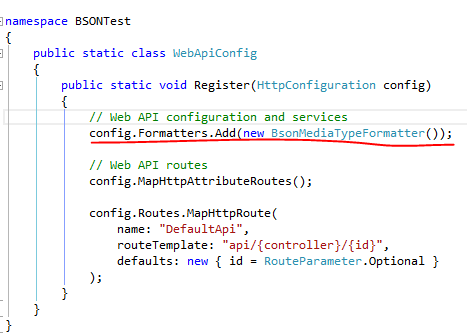
In WebApiConfig file add BsonMediaTypeFormatter. Now if the client requests "application/bson", Web API will use BSON formatting as the response.
Add a simple class called Student.
Add a api controller called StudentController and change the Index method like below.
Using fiddle compose a json message like below.
And the response will be like;
Now set the accept header as application/bson.
Now the response will be like;
In general speaking, if your service returns more binary, numeric and non textual data, then BSON is the best thing to use.

Thursday, September 26, 2013

Web API Attribute Routing

ASP.Net Web API Attribute Routing is a new feature released with Web API 2. In this post I'll use the project which I developed in my previous post.
In the project uninstall nuget packages for ASP.Net web API. Now re-install RC release of Web API version 5.
In previous post I had to comment some methods in CarApiController and ModelApiConotroller.
Reason for that is both traditional and verb-based routing cannot be used in the same ApiController. But that issue is fixed with Web API 2.
First, in WebApiConfig class, map Http Attribute Routes like below.
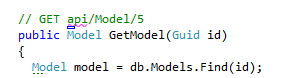
Change code in CarApiController and ModelApiConotroller like below. As you can see, in HttpGetAttribute I have passed routing path for the action.
Now change code appropriately in Client project. If you browse by 'http://localhost:52414/api/ModelApi/43213BE0-F9CF-4266-9B04-6B4645BEF41E', this will call GetModel action.
But if you browse by 'http://localhost:52414/api/ModelApi/43213BE0-F9CF-4266-9B04-6B4645BEF41E/Make', this will call to GetModels action.
Using attribute routing we can have versioning of Web API and much more things.

You can find the source code of this in GitHub.

Consume Web API using JQuery

In this post I'll show how to consume an ASP.Net Web API using JQuery.

First create two ASP.Net MVC projects. Named them as Client and WebAPI. The WebAPI project contains all the API code hat we are going to access via Client. At the end WebAPI content will be published in to IIS and we will access API via Client.
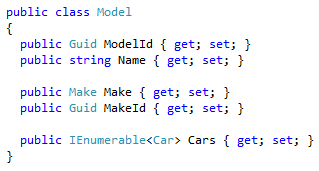
Add Make, Model and Car classes.
Then add MakeApiController, ModelApiController and CarApiController like below.
At the end, Client page will be look like below.
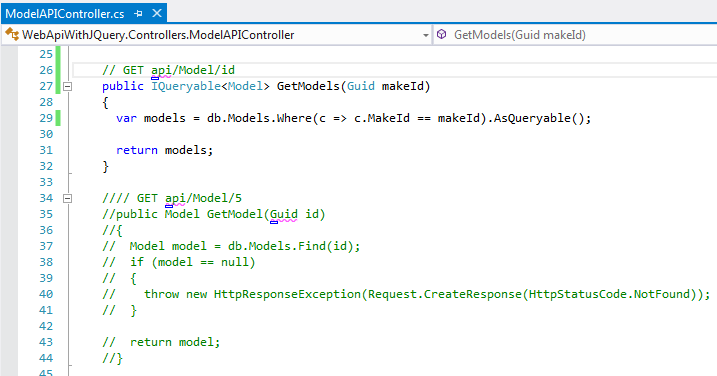
Depending on selections combo boxes will be filled out. So in ModelApiConotroller, we need a API method like 'GetModelsByMakeId'. Also in CarApiController, we need a API method like 'GetCarByModelId'. But the issue is both traditional and verb-based routing cannot be used in the same ApiController. Already there is a Get Verb method in both controllers. So change the code in both controllers like below. Commented block is existing Get Verb method.
Now open IIS and create web application like below. I have used port 86. Publish your WebAPI project to that web application path.
Now we have to develop our Client project. First of all, download bootstrap and paste the files in to relevant locations.
Create a controller called CarController and open Index.chtml of that. Edit the code like below.
Create Demo.js file in Scripts folder and add relevant code. In the below image you can see how to call Web API resource using JQuery.
Now run the Client and browser for Car page.

You can find the source code of this in GitHub.

Web API Test Client

In this post I'm using a nuget package called "Simple Test Client For ASP.Net Web API". Using that we can easily test our web API resources.

First create a project using ASP.Net MVC Web API template. Add a class called Student.
Add StudentApiController like below.
Using nuget add WebApiTestClient package.
Open Api.chtml file which located in below location.
Edit file and add content highlighted in below image.
Run the web application and browse to help page. Click any of the API link. In bottom right corner you'll see the button called "Test API". When you clicked it using the opened dialog you can test your APIs very easily.
You can find the source code of this in GitHub.