Showing posts with label ASP.net 5. Show all posts

Wednesday, April 15, 2015

Apache Cordova with Angular JS

Apache Cordova is a platform for building native mobile applications using HTML, CSS and JavaScript. In this post I will create a sample hybrid mobile application using Cordova. This application will mainly use Angular JS. I will use most of the codes from my previous post.
You can easily install Cordova using Visual Studio plugins.
Create a Blank Cordova Application.
Project structure looks like below. When Cordova starts, it will initiate to run index.html file as the start up page. There you will find references of cordova.js and platformoverrides.js which are mainly used by Cordova, when it package the application for different mobile specific packages.
And also, index.js file is another important file which contains mobile application specific lifetime events.
Download Jquery, Bootstrap, Angular, Angular-resource, Angular-router, Angular-touch and FontAwesome and then save javascripts, CSS and fonts accordingly.
Add references of javascripts and css files into index.html file.
Add Angular main module in to app folder like below.
As I have mentioned before, I copied several files from my previous project which relates to previous post. Therefore, I won't explain much about the content. welcomeView.html file is like below.
studentListViewController.js file content is like below.
studentListView.html file content should be like below.
studentDetailViewController.js file content should be like below.
studentDetailView.html file should like below.
commonService.js file content is like below.
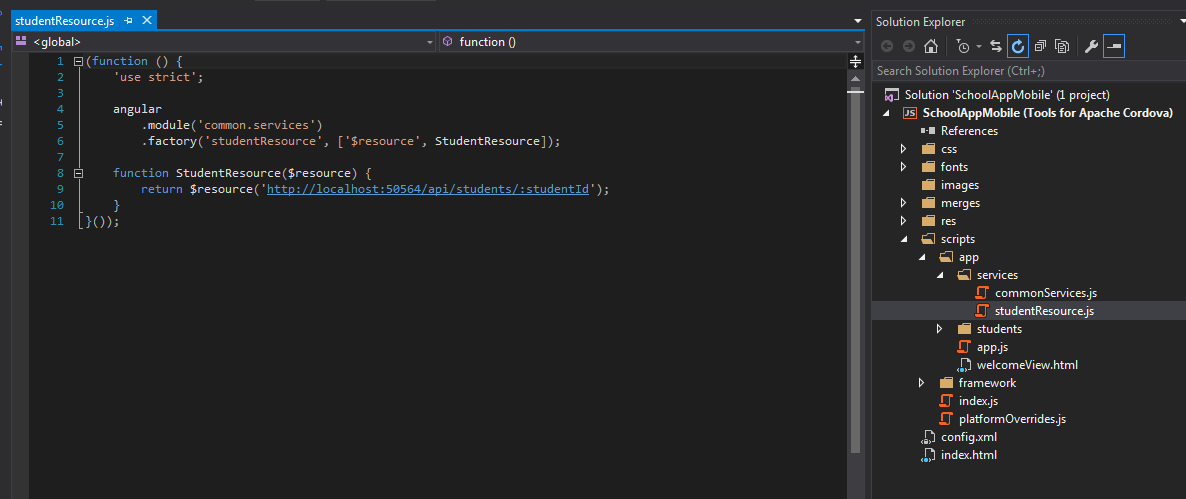
studentResource.js file should be like below.
Change index.html file like below.
Then add application specific javascript files.
Now run the application. Sometimes, Visual Studio get crashed(may be I'm using 2015 preview version). Therefore I think it is better if you enable Detailed build output. To do that, go to Tools -> Options and then select Detailed according to following way.
You must run your previous application which contains web api controllers. Reason for that is, you have specified a web api URL, in studentResource.js file.
Following are the screens of Home, List and Detail view.

Sunday, April 12, 2015

Validations with Angular JS

In this post I will explain how to use basic form validations with Angular JS. This will continue with the code written in my previous post.
Add web api controller action like below.
Add studentEditInfoController.js file like below.
Add studentEditInfoView.html  file below.
In here, I have used novalidate attribute. This will disable browser based validations. Using an angular condition, I have enabled to add has-error bootstrap class dynamically. In FirstName filed I gave min length and add required form attribute. Also I have disabled Save button till all validations passes for the form .
Modify, app.js locations.
When there are validation errors, the form will look like,

Using AngularJS in ASP.net 5 Project

In this post I will exaplin how to create simple Angular JS application. This will continue with the code written in my last post.
In Scripts folder create a folder called app. In that folder create AngularJS main module. By convention, main module is define in app.js file.
Use IIFE Javascript pattern for define the main module.
Add index.html file into wwwroot. Add AngularJS reference. Also you need to add app.js reference. This is a minified javascript file.
Our target is to show a student list. Therefore, add students folder into app folder. Then create studentListController.js file like below.
We can write an Angular service to load students from Web API. First create services module like below.
Then create studentResource.js file in resource folder. The code should be like below. In here I used built in Angular service for call a web service. This is a angular factory which create resource objects which only works with REST services.
Now we need to add ngResource module to common.services as a dependency.
ngResource module is not provided with angular. So we need to add javascript reference as below.
Let's use the data access component in studentListController. $scope is an object that refers to the application model. We must add dependencies correctly.
In the main module, change code like below for dependency injection.
Index.html file content should change like below. There are several classes added which are from Botstrap.
To have bootstrap functionality, add JS and CSS file references like below.
Run the project, and response would be like;

Thursday, March 26, 2015

Using Web API in ASP.net 5

In my last post I created a Web Project using ASP.net 5. Now we will create some web api controllers.
First, add ASP.net MVC nuget package to the project.
Then change the Startup.cs class like below.
When you run the application, the browser must open following page, which means your IIS works correctly.
In ASP.net 5, there are two primary concepts.

  • Middleware
Middleware is in the HTTP pipeline. When HTTP request comes in it will go through all the middleware according to the order they have defined. After complete that request, response with flows back through the same route.
  • Services
Using dependency injection pattern, services are availabled to all middleware components. For example, DbContext, Logger service and etc.

Change the Startup class like below. Above mentioned middleware and Service codes are applied from Startup class. This code has configured to use DbContext using DI pattern.
Create folder named Controllers and add a Web API Controller class like below.
If you have data in your database, then you will be able to see an output like below.
Assume, there was an exception occurred. Change the web api controller code like below.
Change the Startup.cs file content.
When you run the project, you will see a beautiful error handling page which contains lots of details.